Manage your subscription, billing, and invoices
Choose a plan, upgrade or downgrade at any time through the billing portal, update payment details, understand usage after a plan change, and download invoices.
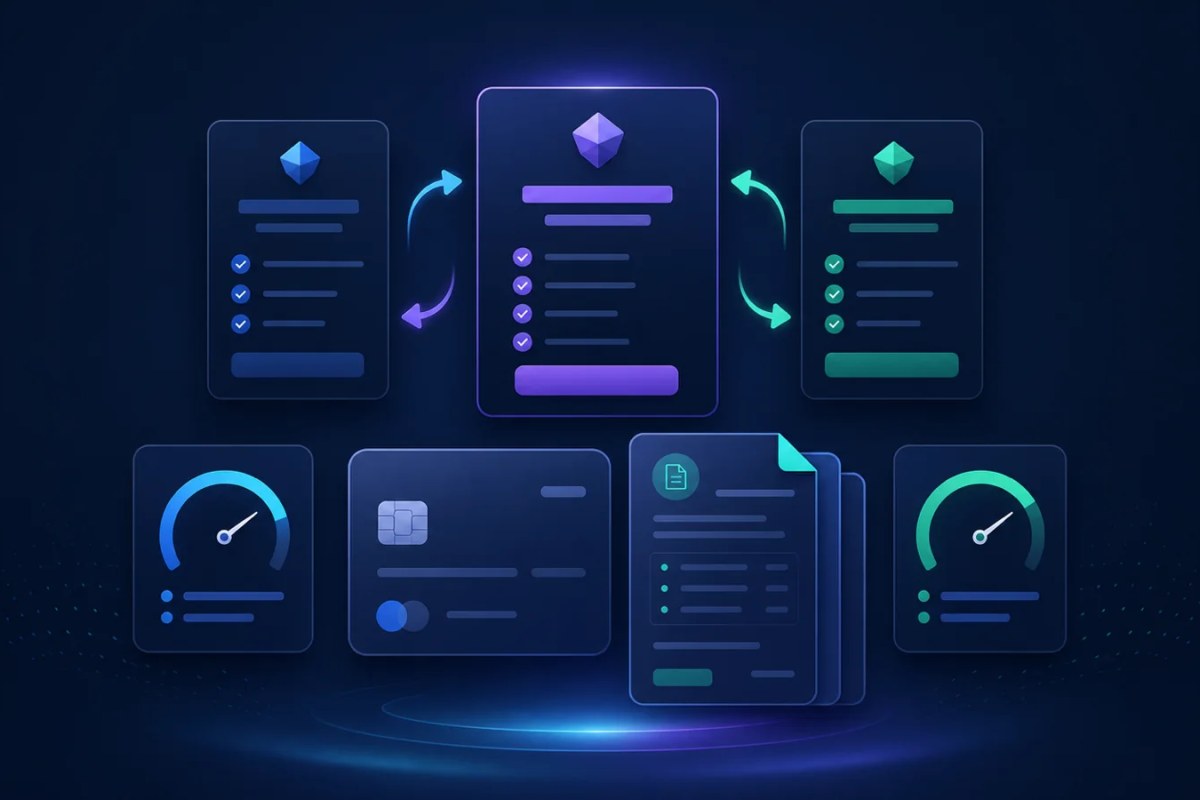
Your Car List API subscription controls the products, usage allowances, token capacity, and support features available to your account. You can upgrade or downgrade your plan at any time through the secure Stripe billing portal.
This guide explains how to select and change a plan, update billing information, understand how plan changes affect API access, handle payment issues, and download invoice PDFs.
## Review your current subscription
Open the user dashboard to see:
Current plan and billing interval
Subscription status
Included products
Renewal, trial, or scheduled end information
Data API usage
VIN Decoder usage
Recent invoices
The dashboard is the best place to confirm that a checkout or plan change has reached your Car List API account.
Choose your first plan
If the account does not have an active subscription, open Subscription Plans.
Compare each plan's:
Monthly or annual billing price
Application or API-token allowance
Data API request allowance
Number of permitted token IP addresses
Automotive access
Powersports access
VIN Decoder Beta access and monthly decode allowance
Premium support
Custom feature-request access
Choose the billing frequency and plan that match the integration you intend to operate. Annual prices may be shown as a monthly equivalent for comparison, but the annual total is billed according to the checkout summary.
After checkout, Car List API waits for Stripe to confirm the subscription. This normally takes only a few seconds. Keep the confirmation page open until the account shows the active plan, then create your API token.
Do not repeat checkout while confirmation is still processing. If the plan does not appear after a reasonable wait, check the Stripe receipt and contact support with the checkout time and account email—never payment credentials.
Open the billing portal
Existing subscribers manage their subscription through Stripe's secure billing portal.
You can open it from:
Account menu → Billing Portal
The Billing Portal button shown when comparing another subscription plan
The portal is hosted by Stripe and returns you to the Car List API user dashboard when you finish.
Use the billing portal to manage supported billing actions such as:
Upgrade or downgrade the subscription plan
Change between available monthly and annual prices
Update the payment method
Update supported billing information
Review the subscription's renewal details
Schedule or manage cancellation when available
Always review Stripe's confirmation screen before submitting a change. It shows the selected price and the billing effect that will apply to the subscription.
Upgrade your plan
You can upgrade at any time through the billing portal.
Before confirming, compare the new plan's product access, API allowance, VIN allowance, token capacity, permitted IP count, billing interval, and price.
After Stripe confirms the upgrade:
Return to the user dashboard.
Confirm the new plan name and products.
Review both usage meters and remaining allowances.
Create or update API tokens only if the new plan permits or requires it.
Test any newly available API product from an allowed server IP.
The local account is updated from Stripe's subscription state. A plan change may take a short time to appear while that confirmation is processed. Refresh the dashboard before repeating the change.
Downgrade your plan
You can also downgrade at any time through the billing portal.
Review the lower plan carefully before confirming. A downgrade can reduce or remove:
Data API request allowance
VIN Decoder allowance or access
Automotive or powersports access
API-token or application capacity
Permitted IP addresses per token
Premium support
Custom feature-request access
When the new plan becomes effective, usage already recorded in the current period remains recorded. The remaining amount is calculated against the active plan's limit. If existing usage is already at or above the lower limit, affected requests can return HTTP 429 until the next reset.
Likewise, requests to a product that is not included in the active plan can return HTTP 403. Review production dependencies before removing an entitlement that an application currently uses.
Before downgrading:
Identify which applications use automotive, powersports, and VIN Decoder endpoints.
Review current API and VIN usage.
Review existing tokens, applications, and IP requirements.
Confirm the lower plan supports every production dependency.
Plan for the effective date and any reduced allowance shown by Stripe.
Understand billing changes and timing
Stripe determines the charge, credit, proration, renewal, and effective timing shown for a portal change. Review that summary before confirming.
Car List API should reflect the subscription after Stripe processes the update. If the dashboard still shows the previous plan:
Wait briefly and refresh the page
Confirm Stripe shows the expected active subscription
Avoid submitting the same plan change repeatedly
Record the change time and timezone
Contact support if the states remain different
Include the account email, expected plan, displayed plan, and approximate change time. Do not send card details, Stripe credentials, or complete invoice payment information.
Update your payment method or billing information
Open the billing portal to replace an expiring card, choose another supported payment method, or update the billing information Stripe makes available for the account.
For a failed or past-due payment:
Open the billing portal.
Confirm the payment method is current and has sufficient authorization.
Correct the billing information if necessary.
Follow any retry or payment instructions shown by Stripe.
Return to the dashboard and review the subscription status.
Payment failures can eventually affect subscription and API access. Update the payment method promptly rather than creating a second subscription.
Car List API support cannot accept card numbers or update a payment method on your behalf. Billing credentials must be entered only through Stripe's secure portal.
Cancel a subscription
When cancellation is available, manage it through the billing portal.
Review the date Stripe shows before confirming. A cancellation scheduled for the end of the billing period normally leaves the subscription active until the displayed end date. The user dashboard shows scheduled end information when it is available.
Before the subscription ends:
Download any invoice PDFs needed for your records
Review which production applications depend on Car List API
Remove or disable scheduled jobs that would continue making requests
Plan the removal of tokens and stored credentials
After the subscription is no longer active, authenticated product requests may return HTTP 403 because an active eligible subscription is required.
Do not delete the Car List API account merely to stop billing. Manage the subscription in the billing portal first and confirm the cancellation status.
Understand usage after a plan change
Car List API tracks two separate allowances:
Allowance | What it covers |
|---|---|
Data API usage | Successful automotive and powersports requests |
VIN Decoder usage | | Successful VIN Decoder requests, including cache hits |
Changing plans does not erase usage already recorded in the current period. The dashboard recalculates remaining usage using the active plan's allowance.
This means:
An upgrade can increase the remaining allowance after it becomes active
A downgrade can reduce remaining usage to zero if the lower limit has already been reached
Removing VIN Decoder access blocks VIN requests even if a prior plan had unused VIN decodes
Removing powersports or automotive access blocks that product even if the data API meter still has remaining requests
Unused VIN decodes do not roll over. Use the reset_at value returned with HTTP 429 responses and the dashboard's usage period when planning request volume.
View and download invoices
Recent invoices appear on the user dashboard. Open Your Invoices to see the full billing history.
The invoice page shows:
Invoice number
Amount and currency
Payment status
Billing date
Downloadable PDF when available
Invoices are listed newest first. Use Download PDF to save a copy for accounting or tax records.
If no invoice appears immediately after checkout or a billing change, allow Stripe time to finish processing, then use the page's refresh control.
An invoice has incorrect customer information
Update the supported billing details in the Stripe portal before the next invoice. Previously finalized invoices may not automatically change. Contact support with the invoice number and the non-sensitive correction needed; never send complete payment-card information.
An invoice shows an unexpected amount
Compare the invoice with:
The plan and billing interval selected
Stripe's portal confirmation
Any proration, credit, or plan change during the period
The invoice line items and billing dates
If the amount still appears incorrect, contact support with the invoice number, plan, and expected amount. Do not send banking credentials or a full payment-method number.
Common billing questions
Can I upgrade or downgrade at any time?
Yes. Existing subscribers can change to an available plan or billing interval through the billing portal at any time. Review Stripe's effective date and billing summary before confirming.
Should I start a second checkout to change plans?
No. Use the billing portal for an existing subscription. Starting another checkout can create confusion or a duplicate billing attempt.
Why does the dashboard still show the old plan?
The Stripe update may still be processing. Wait briefly, refresh the dashboard, and confirm the subscription shown in Stripe before trying again.
Will downgrading reset my current usage?
No. Usage already recorded remains. Remaining usage is calculated against the active plan's allowance.
Are automotive and VIN Decoder usage combined?
No. Automotive and powersports share the data API allowance. VIN Decoder has a separate allowance.
Where can I download receipts or invoices?
Open Your Invoices and select Download PDF for the required invoice.
Before contacting billing support
Include:
Account email
Current and expected plan
Monthly or annual billing interval
Approximate checkout or change time and timezone
Invoice number when applicable
Sanitized screenshot or error message
Whether Stripe and the Car List API dashboard show different states
Never include:
Full card or bank details
Stripe credentials
Passwords
API tokens
Unredacted environment files
Next steps
- Review your user dashboard
- Compare subscription plans
- View and download invoices
- Read Manage your account, security, and API access
- Read Troubleshoot common Car List API issues
- Contact the Car List API team if a billing issue remains
Did you find this article helpful?
Your feedback helps us make the next answer clearer.