Manage your account, security, and API access
Update your profile, secure sign-in with a password or connected account, enable two-factor authentication, review browser sessions, and manage API tokens.
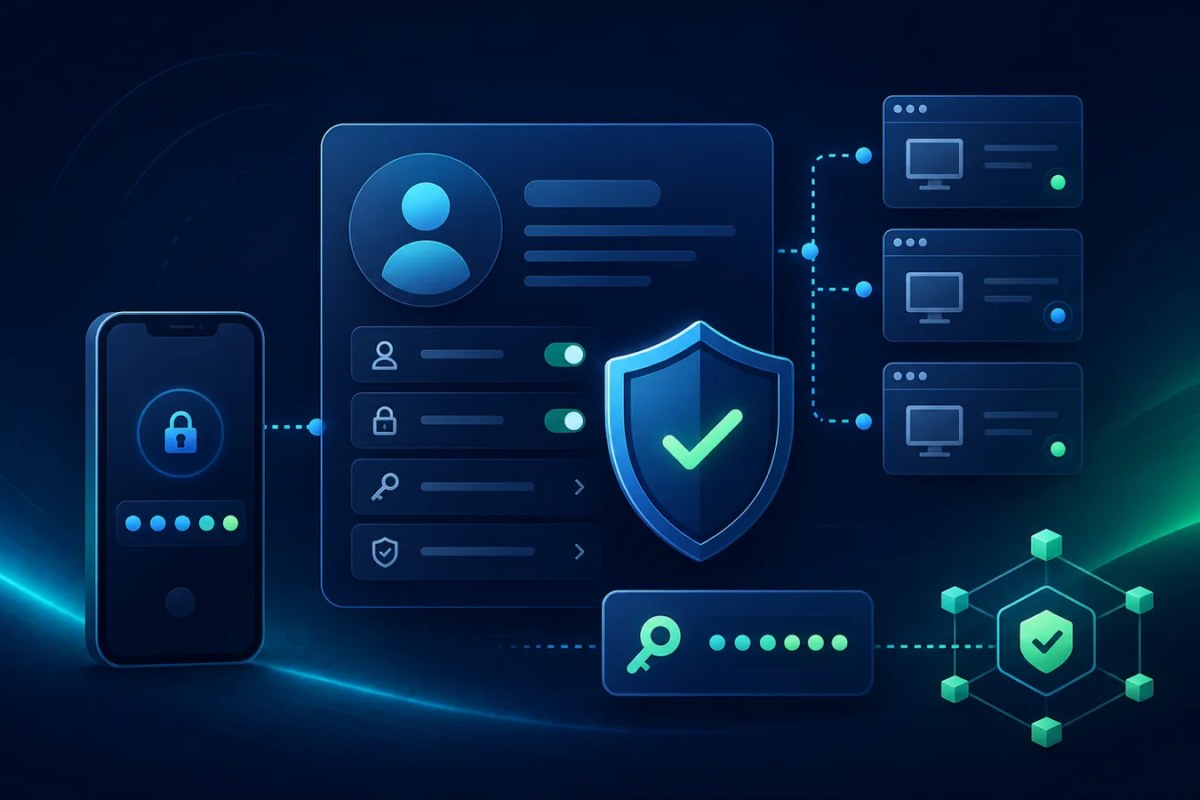
Your Car List API account brings together two kinds of access: the account you use to sign in to the dashboard and the API tokens your applications use to request data. Keeping both current and secure helps prevent unexpected login and integration problems.
This guide explains how to update your profile, manage sign-in methods, enable two-factor authentication, review browser sessions, and maintain production API tokens.
Open your account settings
Sign in and open your profile settings from the account menu.
The profile page contains the account controls available to you:
Profile name, email address, and photo
Connected Google or GitHub accounts when available
Password management
Two-factor authentication
Active browser sessions
Your user dashboard provides the broader account overview, including the current plan, product access, usage, recent requests, billing activity, and shortcuts to API-token management.
Update your name, email, or profile photo
Use the Profile Information section to change your name, email address, or profile photo.
Profile photos must be JPG, JPEG, or PNG files no larger than 1 MB. If an upload fails, confirm both the file type and size before trying again.
Changing your email address
Changing a verified email address resets its verified status and sends a verification message to the new address. Complete that verification before attempting to use protected dashboard pages again.
If the message does not arrive:
Confirm the new address was entered correctly.
Check spam, junk, promotions, and filtered folders.
Add the Car List API sender to your allowed senders.
Use the resend-verification option shown on the account page.
Avoid submitting repeated changes while delivery is still pending.
The new email address must not already belong to another Car List API account.
Manage your password
Accounts with a configured password can change it from the Profile page. Use a unique password that is not shared with another website or service.
If you cannot remember the current password, sign out and use the password-reset process instead of repeatedly guessing. Password reset links should be opened only from the email account associated with Car List API.
Accounts created with Google or GitHub
An account created through a connected provider may not initially have a Car List API password. The Connected Accounts section can email you a secure password-setup link.
Add a password before disconnecting your only sign-in provider. Otherwise, you could remove the method you rely on to access the account.
Never send a password or password-reset link to support.
Connect or disconnect Google and GitHub
When social sign-in providers are available, you can connect Google or GitHub as an additional way to access the same Car List API account.
Connect providers from inside your existing authenticated profile. This is important when another account already uses the same email address: sign in to the original account first, then connect the provider instead of creating a second account.
Car List API does not store provider access tokens for connected sign-in accounts.
Before disconnecting a provider, confirm that you can still sign in with either:
A configured Car List API password, or
Another connected provider
If the provider reports a different email address, the Connected Accounts section shows which provider identity is attached to the account.
Enable two-factor authentication
Two-factor authentication adds a time-based one-time code to the normal sign-in process.
To enable it:
Open the Two Factor Authentication section on the Profile page.
Confirm your password when requested.
Scan the QR code with a compatible authenticator application, or enter the setup key manually.
Enter the generated one-time code to finish confirmation.
Save the recovery codes in a secure password manager.
Two-factor authentication is not fully active until the setup code has been confirmed.
Protect your recovery codes
Recovery codes can be used when the authenticator device is unavailable. Treat them like passwords:
Store them outside the device used for authentication
Do not place them in screenshots, email drafts, source control, or application logs
Mark a code as used after account recovery
Regenerate the set if any code may have been exposed
Generating a new set invalidates the previous recovery codes.
If you lose both the authenticator and all recovery codes, contact support from the account's verified email address. Never send a password, API token, two-factor setup key, or recovery code in the request.
Review active browser sessions
The Browser Sessions section shows recent sessions with available device, browser, IP, and activity information.
If you see an unfamiliar session:
Use Log Out Other Browser Sessions.
Change the account password.
Review connected Google and GitHub accounts.
Regenerate two-factor recovery codes if they may have been exposed.
Review and rotate API tokens separately.
Logging out browser sessions does not automatically revoke API tokens. Browser sessions and API credentials are intentionally managed independently.
Manage API tokens separately
Applications authenticate with API tokens rather than your dashboard password. Open API-token management from the user dashboard.
When creating a token:
Give it a name that identifies the application and environment, such as
Production WebsiteorStaging Importer.Add the public outbound IP address of every server permitted to use it.
Choose an appropriate expiration date.
Copy the token when it is displayed and save it in a server-side secret manager or environment variable.
The complete token should never appear in:
Browser JavaScript
Mobile application code
URLs or query strings
Public repositories
Screenshots
Analytics or error-monitoring events
Support messages
If a token is exposed, revoke it immediately and replace it. Changing your account password does not rotate application tokens.
Understand the IP allowlist
The IP saved on a token must match the public outbound address of the server making the API request.
It is usually not:
Your personal computer's IP
The website's inbound address
A private container or local-network address
The database server's address
Hosting platforms may use multiple outbound addresses. Add every address that can legitimately send requests, within the allowance provided by your plan.
An incorrect or incomplete allowlist returns HTTP 403 with IP address mismatch. Test the token from the actual production environment after changing it.
Rotate a token without interrupting production
When your plan permits another token, use an overlap period:
Create the replacement token with the correct IP addresses.
Store it in the application's secret configuration.
Deploy or restart the application through its normal process.
Confirm a request succeeds with the replacement.
Revoke the old token.
Do not revoke the active token before confirming the replacement is in use. If your token allowance prevents an overlap, plan a short maintenance window or coordinate the rotation carefully.
Account security checklist
Keep the email address current and verified
Use a unique password stored in a password manager
Enable two-factor authentication
Store recovery codes securely
Review connected sign-in providers periodically
Log out unfamiliar browser sessions
Give each application and environment its own clearly named token when the plan allows
Restrict tokens to the required public outbound IP addresses
Rotate exposed or expiring tokens promptly
Keep passwords and API tokens out of client-side code and logs
Common account questions
Why did dashboard access stop after I changed my email?
The new email address must be verified. Open the verification message or use the resend option.
Does changing my password revoke API tokens?
No. Review and revoke API tokens separately when credentials may have been exposed.
Does logging out other browser sessions stop API requests?
No. It ends other browser sessions, not application tokens.
Why can I not disconnect my only connected provider?
Configure a password or another sign-in method first so the account remains accessible.
Why does my new token return “IP address mismatch”?
The request is reaching Car List API from a public outbound IP that is not saved on the token. Check the egress address used by the application server.
## Next steps
- Visit your profile settings
- Review your user dashboard
- Read Troubleshoot common Car List API issues
- Read Manage your subscription, billing, and invoices
- Contact the Car List API team if an account-access issue remains
Did you find this article helpful?
Your feedback helps us make the next answer clearer.